

Color has the power to evoke emotions or reinforce an important message. Psychologists around the world have conducted years of research into the influence of different colors on us as human beings and how they affect our behavior.
The introduction of various AI tools into the product design process has made tasks such as selecting color combinations and palettes much simpler and less time-consuming than before.
One of those AI tools is Khroma : an online, AI-assisted tool for generating colors.
In this blog, we explain what you can do with it, how it works, and how you can use it smartly for your website.
What is Khroma?
Khroma is a smart, AI-driven tool that helps you choose colors for your website or brand. Instead of showing random color combinations, Khroma first gets to know your taste.
Khroma, designed by George Hastings, is inspired by Color Claim, another handy tool for color design. Color Claim is a collection of over 100 color combinations that Tobias Van Schneider has compiled over the years and that are displayed in a typographic form.
You start by selecting colors you like. Based on that, the tool trains a kind of personal taste profile. Next, Khroma generates an endless number of color palettes that match your style.
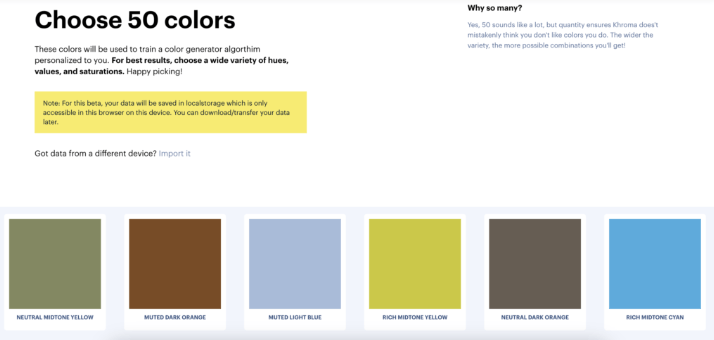
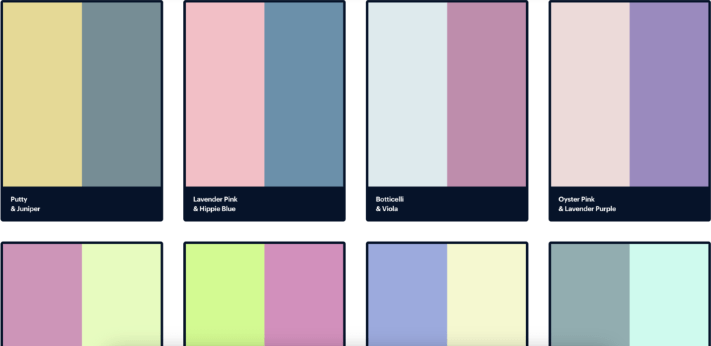
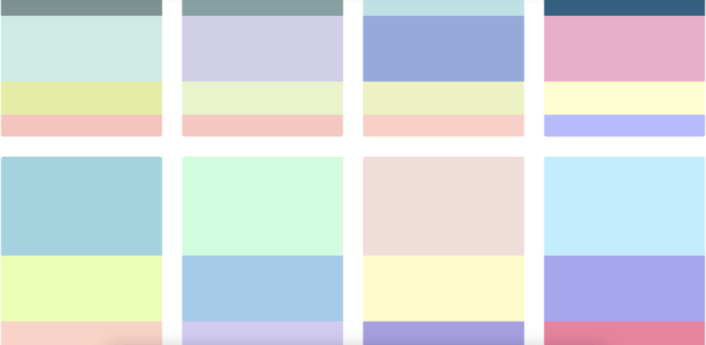
Once your color palettes have been generated, Khroma offers you numerous options to browse and edit them. You can view the palettes as text, an image, a gradient, or as a self-uploaded image. Additionally, you immediately receive all technical information, such as HEX codes and RGB values. These are the color codes that you can paste into the JouwWeb Editor.
Type:
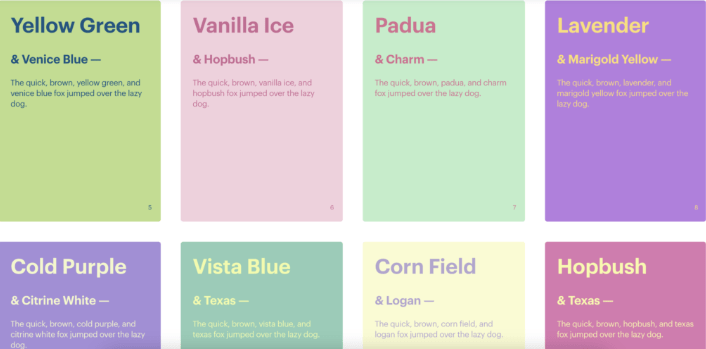
Poster:
Gradient (color transition):
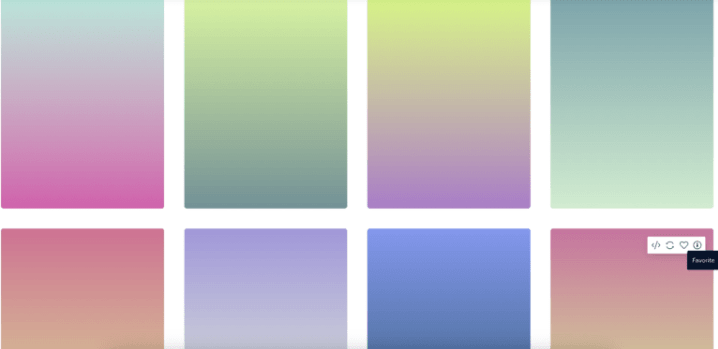
Image:

Color palette:
This is how you use Khroma for your website
It is of course nice to use such a tool, but how do you implement it on your website?
1. Choose your base colors
Use Khroma to choose 2-4 main colors for your website. Consider:
- A main color
- A background color
- An accent color (for your buttons/links)
2. Test your colors in context
See how colors look as text or on a background. Khroma naturally already shows you this, but it is still a good idea to test this on your own website in combination with your logo and/or products.
3. Use the color codes directly in Webador
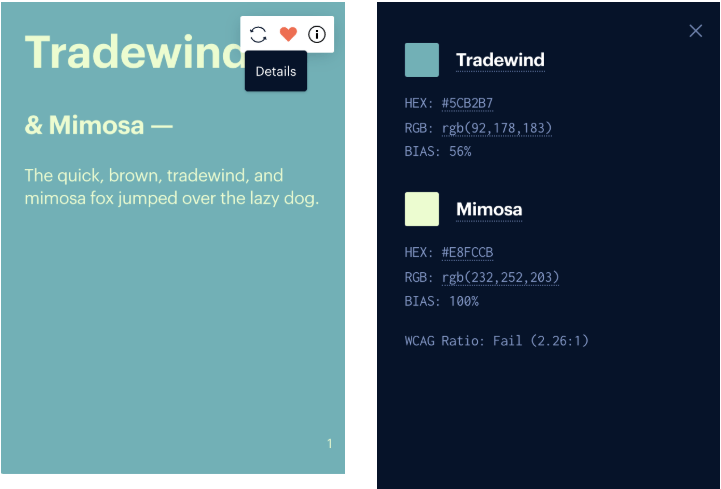
Have you found a nice combination? Save it as a favorite, click on the ‘i’ in the top right for details, and the color codes will appear. Copy the HEX code and add it to your website via the “Design” tab.
Extra tips for a strong design
- Keep it simple: Don’t use too many colors, 2-4 colors are often enough.
- Work with contrast: ensure the text is easily readable everywhere on your website.
- Stay consistent: Use the same colors everywhere. On your website, social media, and in your logo.
- Consider your target audience: a children’s brand requires different colors than a business service provider.
The Design tool for starting entrepreneurs
Choosing the right color combinations doesn’t have to be difficult. With this tool, you make choices faster that feel right and, above all, look professional!
So, are you unsure about your website’s colors? Try Krhoma and discover what suits your brand!